Managing Balances
Viewing your Balances
A Balance on your Equals account is a pot of funds that can be used for spending, receiving money, or making batch payments. There two types of Balances:
- Individual Balances: Assigned to a specific person for their allocated spend.
- Shared Balances: Used by teams or departments, or for shared purposes like subscriptions.
Balances can be nested and structured in layers (e.g., Account Balance > Marketing Team Balance > Google Ads Balance) to suit your organisation's needs. Each Balance can be in multiple currencies and has its own permissions and features.
Cards are linked to specific Balances, and users must be assigned to a Balance to access the funds in it. Controls can be implemented to ensure a user only has access to a limited amount of funds.
To get there, go to Balances in the left-hand menu.
Finding your Balances
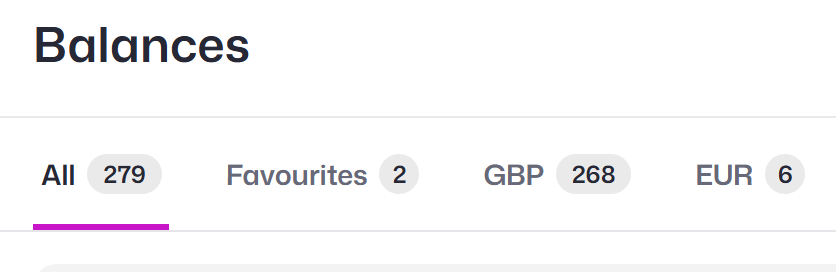
Across the top of the page you'll see a row of tabs that act as quick filters.
The All tab shows every balance, with the total count next to it. The Favourites tab shows only the balances you've starred, so the ones you use most are always a click away.
After that come tabs for each currency you hold, such as GBP, EUR, USD, AED and CAD, each with a count of how many balances use it.
Searching and filtering
To find a specific balance by name, click the search icon (the magnifying glass) and start typing.
To filter the list, click the filter icon (next to the search icon). You can filter by:
- Balance: filter by a specific Balance name
- Currency: show only Balances in a chosen currency
- Type: show only one type, such as Account, Shared or Individual
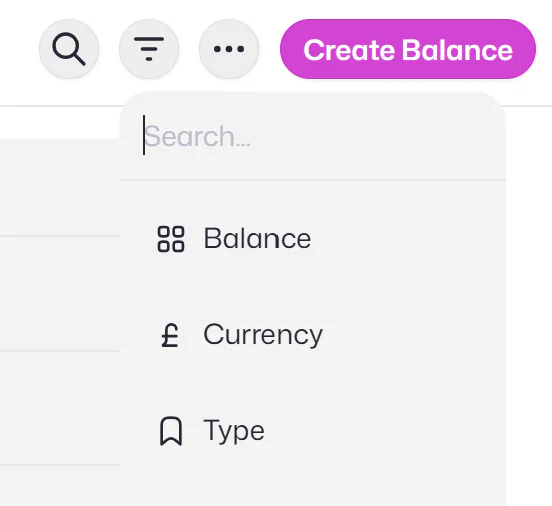
When you apply a filter, it appears as a label above the list. Click the plus icon next to it to add another condition, or click Clear to remove all filters and go back to the full list.
Choosing which columns to show
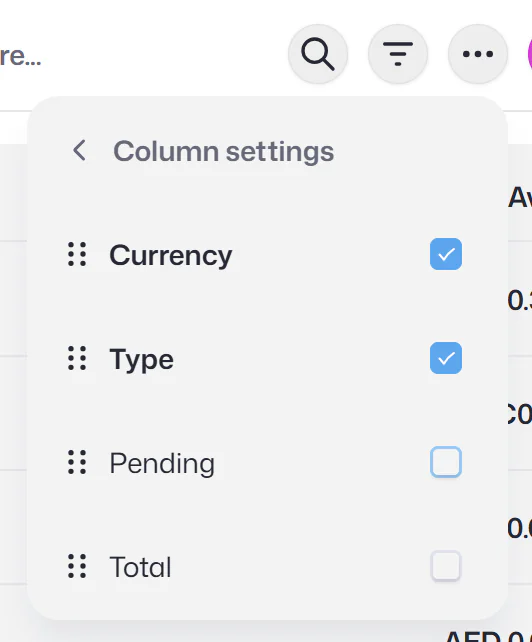
Click the ... icon to the right of the filter icon to open Column settings.
From here you can turn columns on or off using the tick boxes: Currency, Type, Pending and Total. Use the drag handles to the left of each name to reorder them.
Balance name and Available always stay on, so you can tailor the rest of the view to what you want to see.
Managing Balances
Opening a Balance
Click any Balance row to open its menu.
The panel shows a link to view all transactions for that Balance, followed by its Available, Pending and Total amounts. You can also see a list of the currencies held under the same Balance, each with its available amount. Click View more to see the full list, or click Balance settings at the bottom to manage the Balance.
Balance settings
From the Balance panel, click Balance settings to manage that balance in more detail. Here you can:
- Open Low balance alerts to view the alerts set for the balance
- Manage any cards linked to the Balance. Use the toggle next to each card to link or unlink it
- Turn Balance features on or off, including Individual cards and Shared cards
The Balance menu
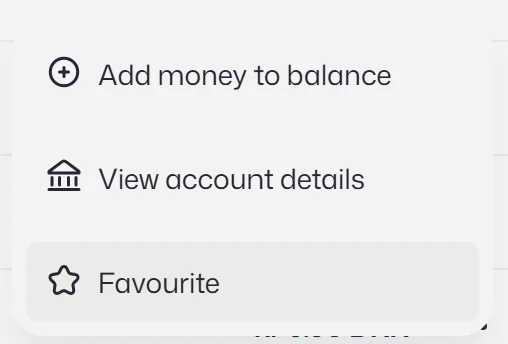
Click the ... icon at the end of any balance row to open a menu. From here you can add money to your account or favourite the Balance. This allows you to access it in future via the favourites tab at the top of the page.
Assigning people to Balances
If you would like a member of your team to have access to money on your account, you will need to assign them to a Balance, or multiple Balances, after you create them.
You can either assign them to an existing Balance on your account or create a new one. To create a new one, choose the "Create Balance" option at the top right.
To assign someone to an existing Shared Balance, click on the Balance row, and then select "Balance settings" on the menu that appears.
Then select "Balance roles" on the next page.
Compare Balance roles:
Each person assigned to a Balance must be associated with a specific balance role, which outlines their permissible actions and access within that designated Balance.
You will also need to ensure your required features are active on each Balance.
| Permission | Balance admin | Balance payer | Balance viewer | Balance user |
|---|---|---|---|---|
| Spend from Individual cards | ✓ | ✓ | ✓ | ✓ |
| Spend from Shared cards | ✓ | ✕ | ✕ | ✕ |
| View transactions | ✓ | ✓ | ✓ | Their own |
| Internal transfers | ✓ | ✓ | ✕ | ✕ |
| View Individual and Shared cards | ✓ | ✕ | ✓ | ✕ |
| Create Shared cards | ✓ | ✕ | ✕ | ✕ |
| Assign Individual cards to Balances | ✓ | ✕ | ✕ | ✕ |
| Create Individual cards | ✕ | ✕ | ✕ | ✕ |
| Manage Shared and Individual card limits | ✓ | ✕ | ✕ | ✕ |
| Create new Balances | ✓ | ✕ | ✕ | ✕ |
Balance roles quiz
Use our quiz to help work out the right Balance role for the person you're adding.
Question 1 of 5
Will this person need to create Shared cards, manage card limits, assign cards to Balances, or create new Balances?
Look through more platform walkthroughs


Ready to get started?
Open an account today and put this guide to use right away.