Batch payments
What is a batch payment?
Our batch payments feature allows you to send multiple payments simultaneously. Make quick work of bulk payments to suppliers, payroll, refunds and more.
Simply upload a CSV that lists all your payment information, review it, and send.
Batch payments can be sent from the Account balance or any shared balances. They cannot be sent from Individual balances. If you do not wish to allow batch payments from a specific shared balance, you can deactivate the feature on the Manage Balance option.
Anyone who can make normal single payments can also make batch payments. People with the account role of Payer, Admin or Owner will be able to make batch payments.
Upload your CSV
To get to batch payments, go to the Payments page of your account and select “Create batch payment”.
At the start of the batch payments process, you’ll be asked to download a CSV template to complete.
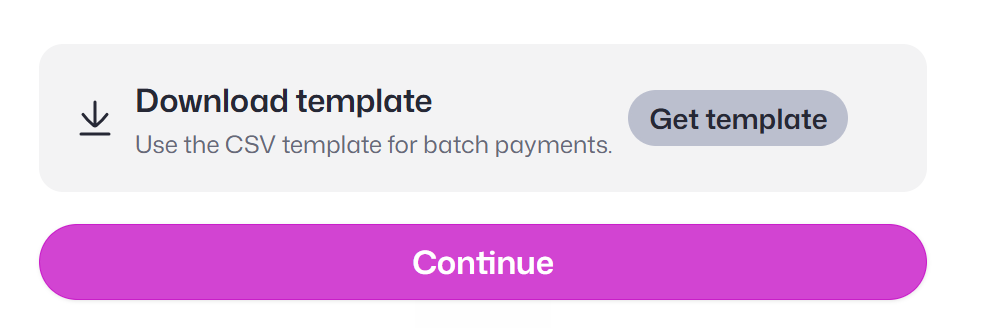
The template will have multiple columns to allow you to fill out the payment information for your batch.
There are a number of details we will need from you. This table shows the columns contained in the download with an explanation.
| Column name | Description |
|---|---|
| amount Required | How much you want to send, in the currency you are sending. The amount must contain 2 decimal places (E.g 100.00). Please ensure you have enough on your account to cover the payment. Example: 300.39 |
| currencyCode Required | The currency you are making the payment in. Please use the currency's three-digit ISO 4217. Ensure that this currency is enabled on your account and sufficient funds are available in the funding balance selected. Example: EUR |
| fundingBudgetId Required | The ID of the Balance you want to pay from. Find a Balance ID by going to the Balances page, clicking on your Balance, going to the Manage tab and finding the ID under "Balance ID". Example: c5b7g4-3451-4915-ab27-4f0c40843e93 |
| purposeCode Required for some payments | A code needed for some country and currency combinations. You can find the correct purpose code on our calculator. Example: STS |
| purpose Required for some payments | A description needed for some country and currency combinations. You can find the correct purpose on our calculator. Example: Sea transport |
| reference Optional | The reference your recipient will see on their statement. If provided this will take precedence over the recipient.defaultReference. The reference should have maximum of 35 characters, including spaces. Example: Invoice 394 |
| recipient.id Optional | Please leave this blank. Example: 4n8d66e |
| recipient.defaultReference Optional | Do not manually enter anything here. If you are using a saved recipient ID, this will populate automatically with the default reference you have asked us to include for payments to the recipient. The reference appears on the recipient's statement. If you'd like to make this payment to the recipient using a different reference to the one saved as recipient.defaultReference please provide the alternative reference in the 'reference' column and this will take precedence over the recipient.defaultReference. Example: ASSD |
| recipient.type Required unless using Recipient ID | Put either business or individual in lower case letters. Example: Business |
| recipient.name Required unless using Recipient ID | The name on the recipient's bank account. Example: ACME Ltd |
| recipient.displayName Optional | Do not manually enter anything here. This is the name that will show for this recipient in your Equals account. This will be populated automatically when downloading a template with your existing recipients from your account. Example: ACME |
| recipient.subscribedEmails.name Optional | The name of the recipient. We will use it if you want us to send your recipient a confirmation of your payment by email. Example: Joe Bloggs |
| recipient.subscribedEmails.email Optional | The email address of your recipient, this allows us to send them a confirmation of your payment. Example: accounts@equalsmoney.com |
| recipient.address.addressType Optional | Choose from one of the address types below: ADDR – General address PBOX – Post Box HOME – Residential/Home address BIZZ – Business/Commercial address MLTO – Mailing Address DLVY – Delivery Address |
| recipient.address.buildingName Optional | Building name of your recipient. Limit of 18 characters. Example: Vintners Place |
| recipient.address.buildingNumber Optional | Building number of your recipient. Example: 68 |
| recipient.address.streetName Optional | Street name of recipient. Example: Upper Thames Street |
| recipient.address.city Optional | City of your recipient. Example: London |
| recipient.address.region Optional | Region of your recipient. Do not include special characters. Example: London |
| recipient.address.postcode Optional | Post code of your recipient. Do not include special characters. Example: EC4B 3BJ |
| recipient.address.countryCode Required unless using Recipient ID | Country code of the address for your recipient. This should be its two-letter ISO 3166-1 code. Example: GB |
| recipient.accountIdentifier Required unless using Recipient ID | The IBAN of your recipient. For domestic payments in GBP enter the Account Number. Example: GB27SPPV231842797500 |
| recipient.bankIdentifier Required unless using Recipient ID | The bank identifier code for your recipient also known as BIC or SWIFT code. For domestic payments in GBP enter sort code. Example: SPPVGB2LXXX |
| recipient.intermediaryBankIdentifier Optional | The bank identifier code for the intermediary bank, if you are using one. Example: SPPVGB2LXXX |
| recipient.paymentNetwork Optional | The payment network you would like to use for your payment. Choose one of these options SWIFT, SEPA, FASTER-PAYMENTS. Example: SEPA |
| recipient.bankAddress.countryCode Required unless using Recipient ID | Country code of the bank address for your recipient. This should be its two-letter ISO 3166-1 code. Example: GB |
Please ensure any account details that start with zero retain the leading zero(s) when saved as CSV. Excel tends to remove leading zeros on numbers. To avoid this you can type an apostrophe in front of the number (for example '040075).
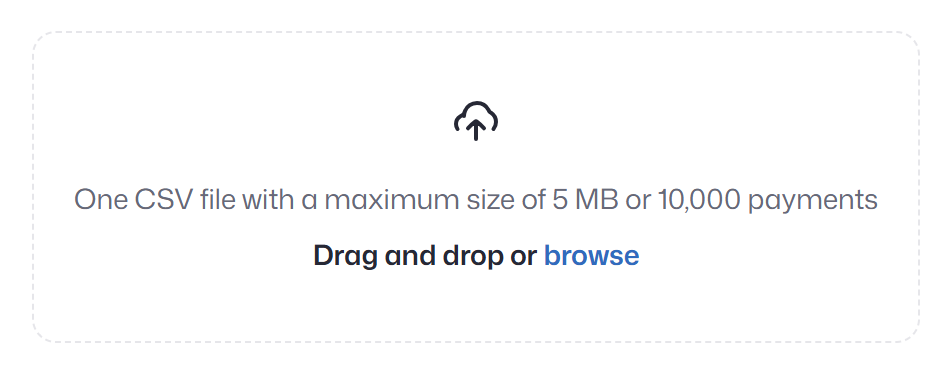
You can enter a maximum of 10,000 payments per batch and the file size cannot exceed 5MB. Your file must be in CSV format.
Please note that the value of your batch payments contributes to your daily payment limit and you will not be able to upload a batch where the total of all your payments exceeds your daily payment limit. Please speak to your account manager if you need your limit changed.
Once you have completed the file, upload it to the same page:
Review your payment
Once you have successfully uploaded your payments, you will be able to review the list before continuing.
Please review your payment details carefully. For batch payments, we cannot verify that recipient account details match with the details of the receiving bank accounts ("Confirmation of Payee" checks). To make any changes, edit your CSV and create a new batch payment.
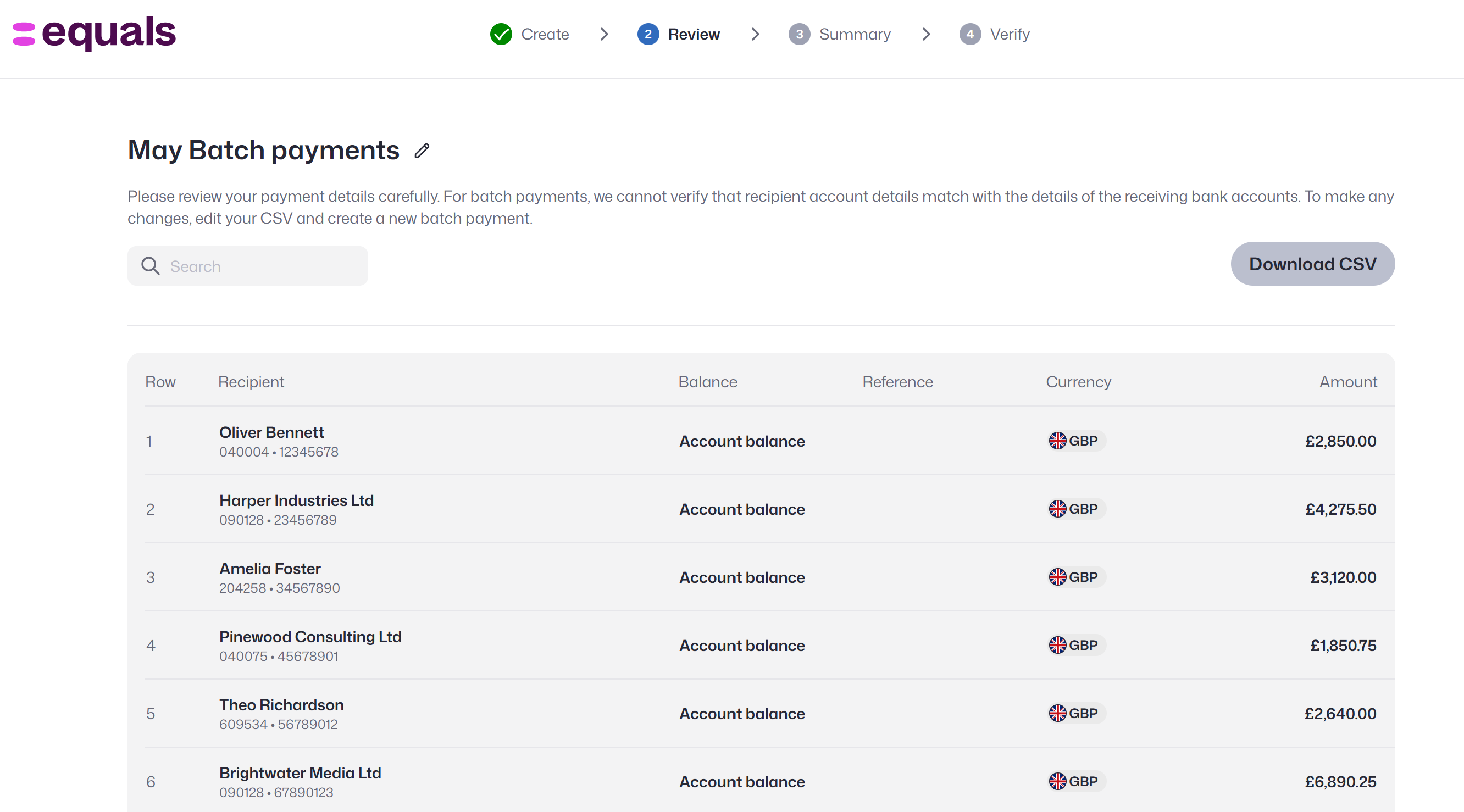
At this point, you can save your batch as a draft. By saving your batch as a draft you are able to come back to it and send it at a later point, or allow someone else to review and check the batch before you send.
On the next screen, you’ll see a summary of each order for your batch. Payments will be grouped into orders, with each currency and balance having its own order number. You can review the currency totals for each.
If the total value of your batch, along with any other payments made on your account on the same day exceeds your total daily payment limit, you will not be able to submit the batch. Please speak to your account manager if you need your limit changed.
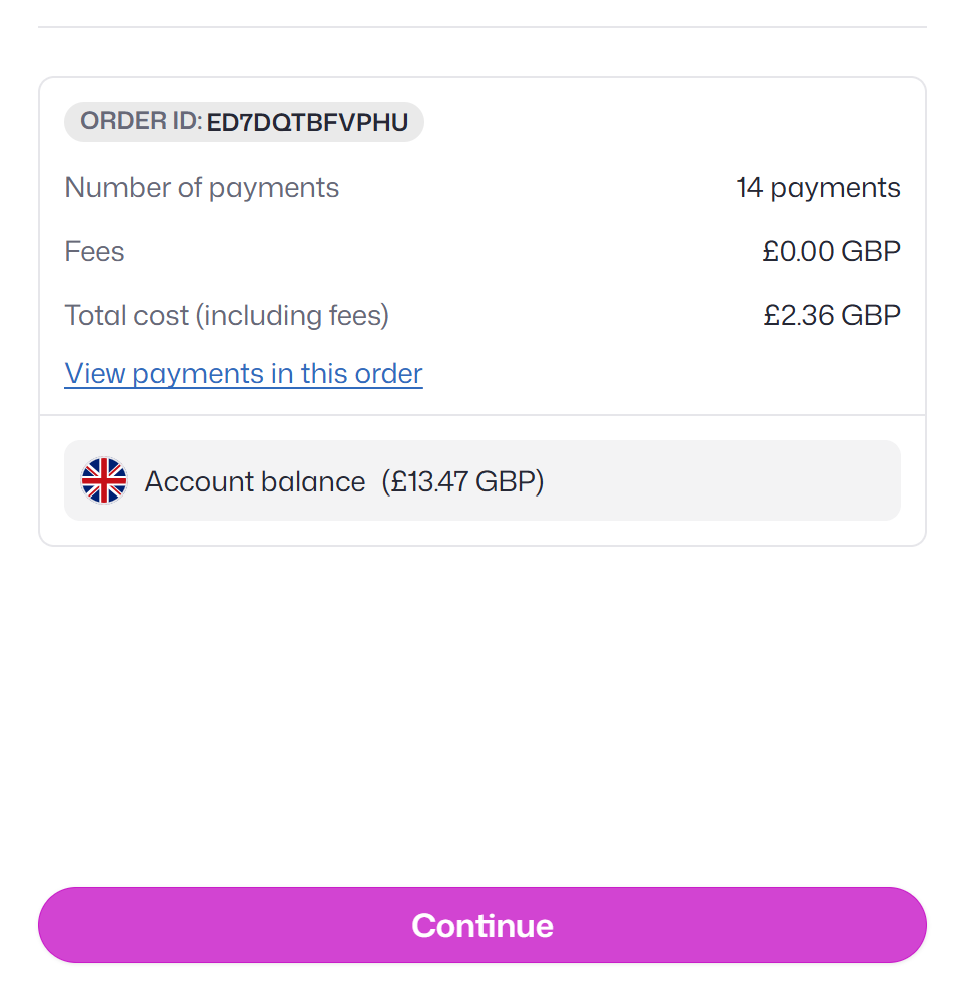
In order to send the batch payment, you will need sufficient funds in your chosen balance and currency. If you do not, you can exit and save the batch as a draft while you top up your balance.
Lastly, we will send a code to your saved mobile number as a security verification before your payments are submitted.
Checking on the status of your batch
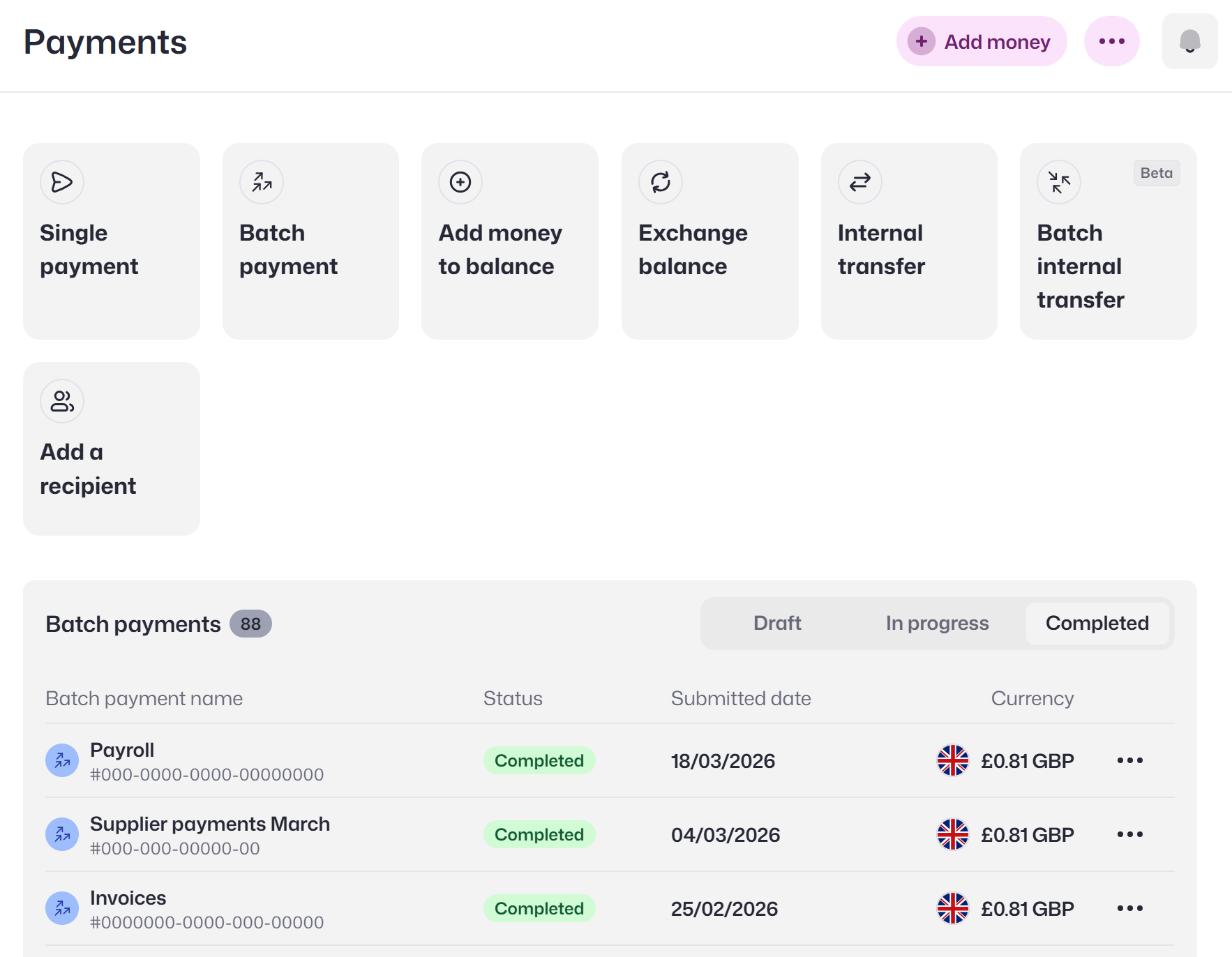
You can check on your batch by going to the Payments page.
Look through more platform walkthroughs


Ready to get started?
Open an account today and put this guide to use right away.