Integrate with SAP Concur
Start by logging into your SAP Concur account and heading to the “App Centre.” Use the search bar to type “Equals” and once in the app listing profile, click “Connect.” A pop-up window will appear asking you to login to Equals.
Select a date
On the window that appears, login to your account. Next, select a date you’d like to sync your transactions from and select “Connect account”.
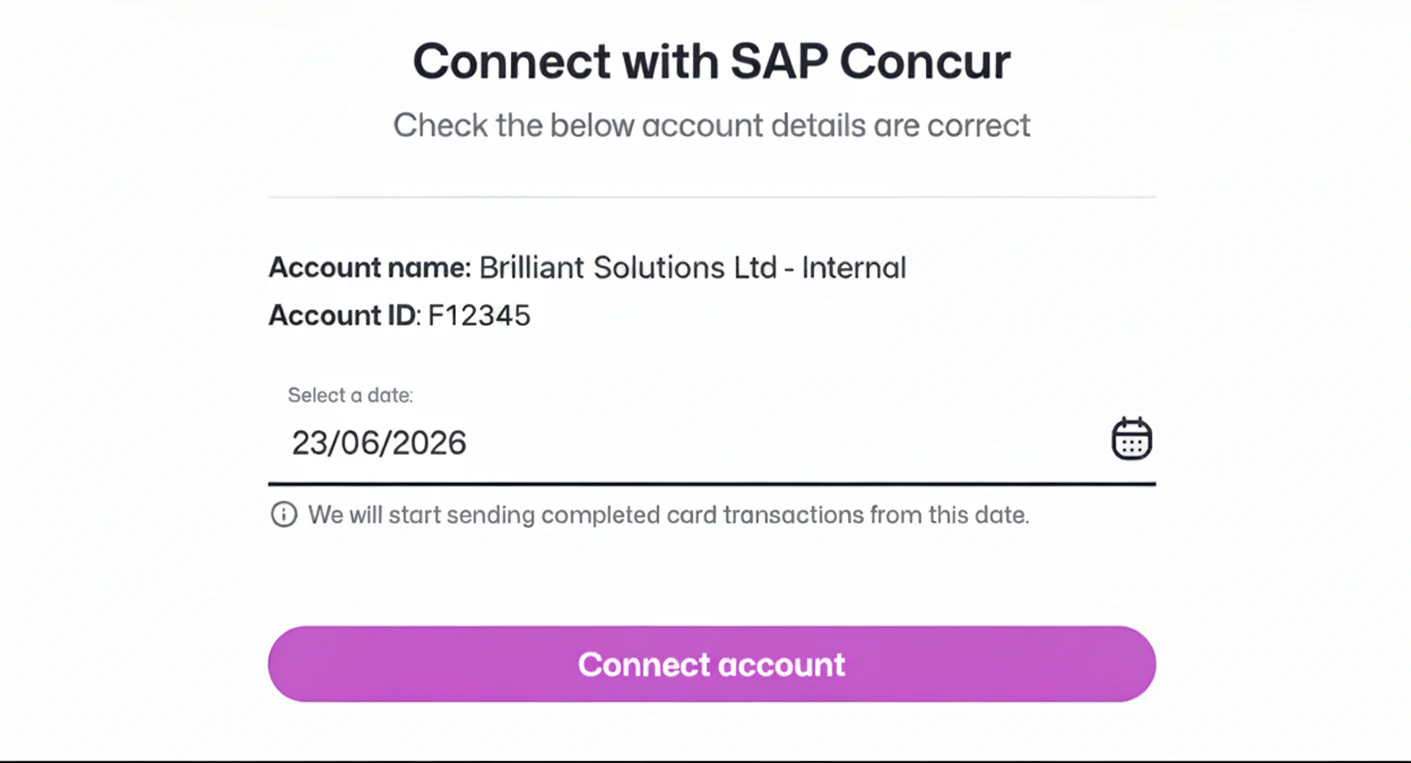
Activate in SAP Concur
You can now close the Equals window and return to the SAP Concur App centre. You will see the status has now changed to “Connected".
Now within SAP Concur's platform, you must ensure you have a payment type for Equals, then create and activate a new integration. To do this, you must:
Login to Concur
You will need to make sure you have the required access to both Equals and SAP Concur. In Equals you will need to ensure you hold the Owner or Accountant role. In SAP Concur you will need to ensure you hold the relevant permission.
Activate the integration
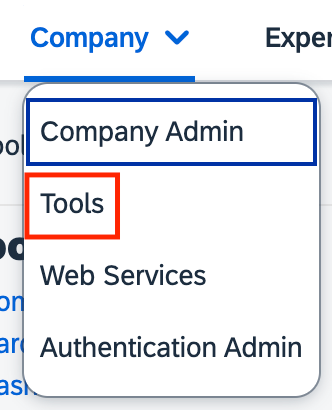
Navigate to “Company” > “Tools”
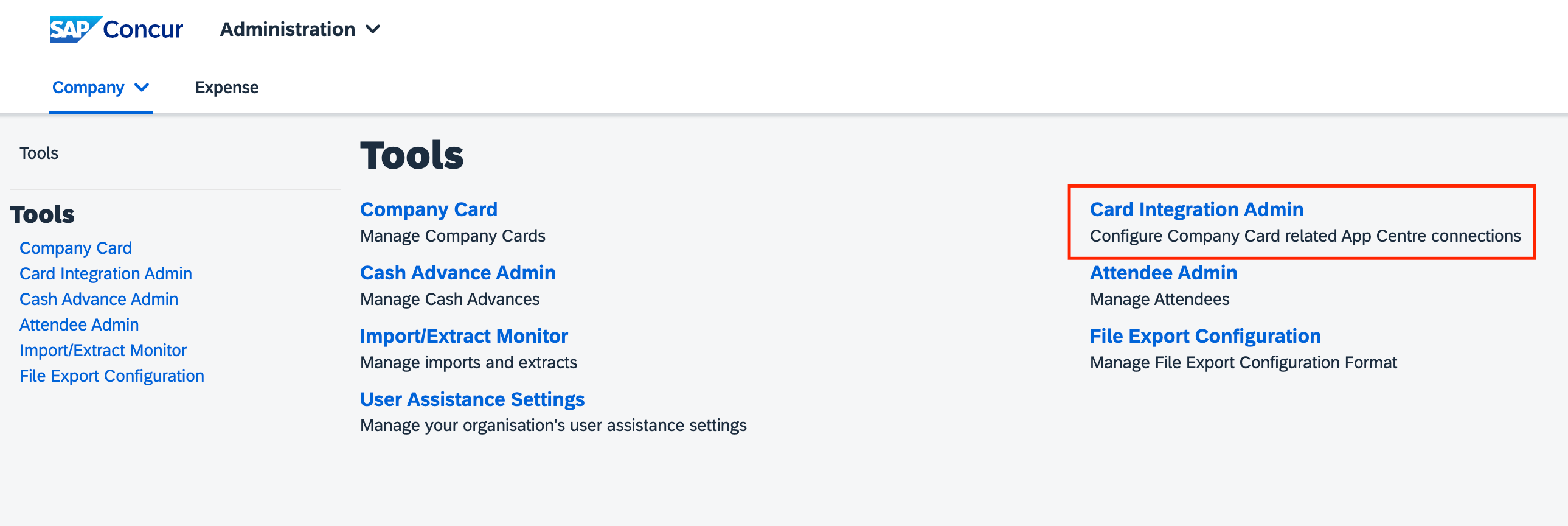
Then choose Card Integration Admin
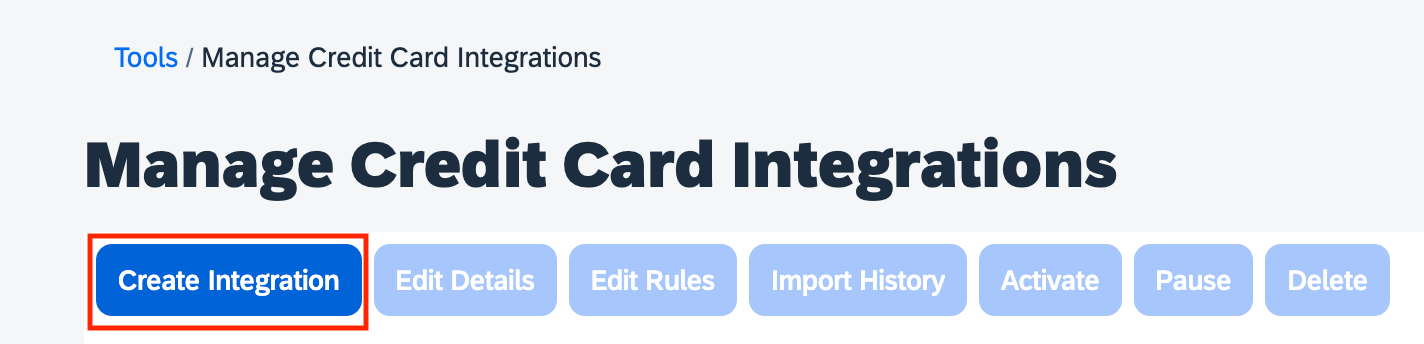
Select "Create integration"
Complete the form that appears as follows:
Integration Name: Reference “Equals”
Partner Application: Select "Equals"
For the "Default Payment Type", you should be able to choose a default of “CBCP” (company billed company paid) or you can create a separate one for “Equals”. Creating a separate type for Equals will help you differentiate Equals transactions from any other company card providers. Read below to find out how to create a new payment type.
Click "Save".
You should now see the Equals integration has an active status.
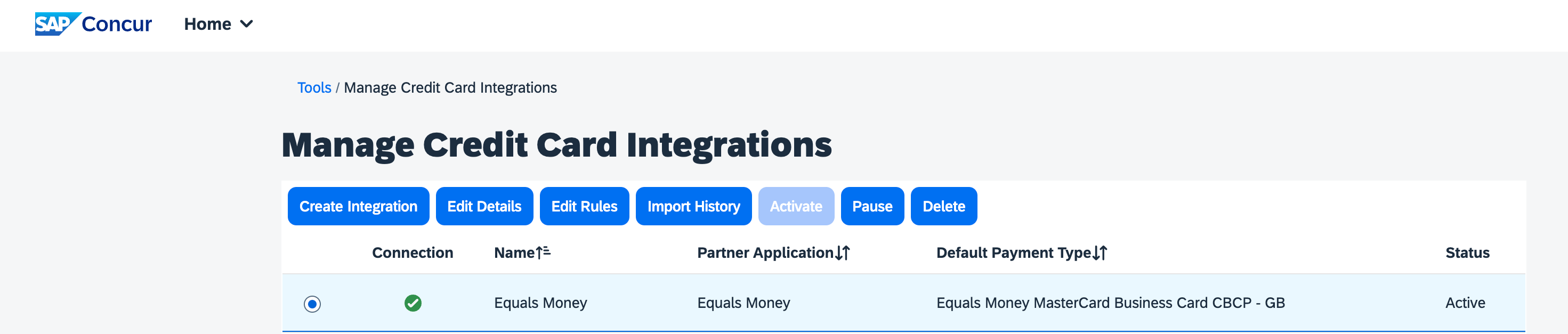
You can now select the pending integration for Equals and select "Activate".
Look through more platform walkthroughs


Ready to get started?
Open an account today and put this guide to use right away.