FAQ / Card spending notifications
Card spending notifications
What are card spending notifications?
Card spending notifications are push notifications sent to your phone when you use your Equals Individual card. You get one every time a card purchase goes through or you withdraw cash at an ATM.
They give you a live view of your card spending. If you get a notification for a payment you didn't make, you'll know about it straight away. You can also tap a notification to annotate the transaction while the details are fresh.
Which transactions will I get notifications for?
You'll get a notification for:
- Card purchases, in store and online
- ATM withdrawals
You won't get notifications for payments made from your account, or for declined card transactions.
Do I need to turn them on?
Card spending notifications are on by default, so you'll start getting them without having to do anything. If you've switched them off, anyone with an Equals card can turn them back on in their own settings.
- Open the Equals app on your phone. You'll need version 4.12.0 or later.
- Go to Settings. On mobile, tap your icon at the top left of the Overview page.
- Go to Notifications
- Turn on Card spending notifications
You'll also need to allow notifications for the Equals app in your phone's settings. If you've turned them off at phone level, you won't get card spending notifications either.
Can I turn them off again?
Yes. Go back to Settings > Notifications and turn off Card spending notifications. You can switch them back on at any time.
Can an admin turn them on for my team?
There's no need, as they're on by default for every cardholder. Each cardholder can switch them off, or back on, in their own settings. Admins can't change this for them.
What's in a notification?
Each notification shows the amount, where you spent it, the last four digits of the card you used and how much is left in the Balance the money came from. For a purchase, it looks like this:
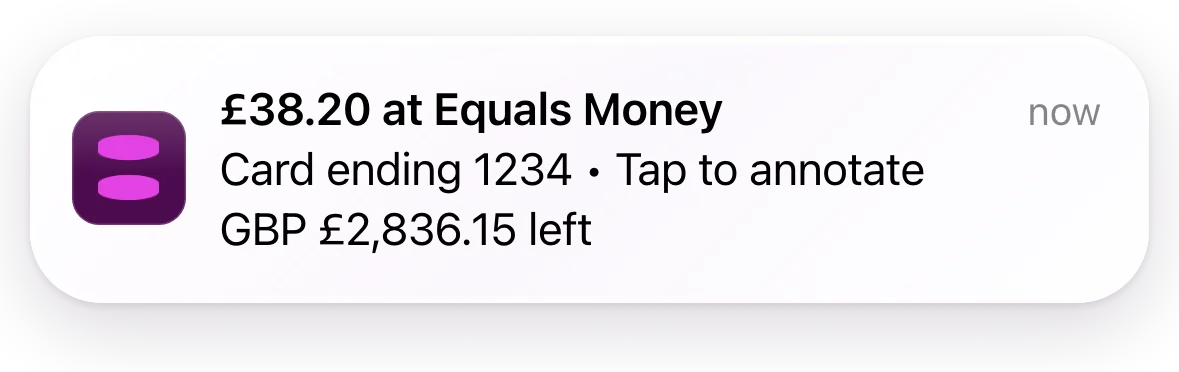
ATM withdrawals show the amount and "ATM withdrawal" rather than the name of the bank or cash machine.
The amount is shown in the currency you spent in, so a purchase in Paris shows as €12.50. If we can't find a name for the merchant, the notification shows the amount spent without it.
What happens when I tap a notification?
The Equals app opens on that transaction, ready for you to annotate it. You can add a note, a receipt or a category without having to search for the transaction first. If you don't have permission to annotate that transaction, you'll see its details instead.
I got a notification for a transaction I don't recognise. What should I do?
Freeze your card straight away from the Cards page, then get in touch with our team so we can look into it.
Why am I not getting notifications?
Check the following:
- Card spending notifications is turned on in Settings > Notifications
- Notifications are allowed for the Equals app in your phone's settings
- You're on version 4.12.0 or later of the Equals app, and signed in on your phone
- The card is an Individual card assigned to you. Shared cards don't send notifications
Remember that declined transactions and payments from your account don't send notifications.
Related product FAQs

Ready to get started?
Open an account today and put this guide to use right away.